
Livestream Production: A Practical Guide for Churches, Businesses & Events
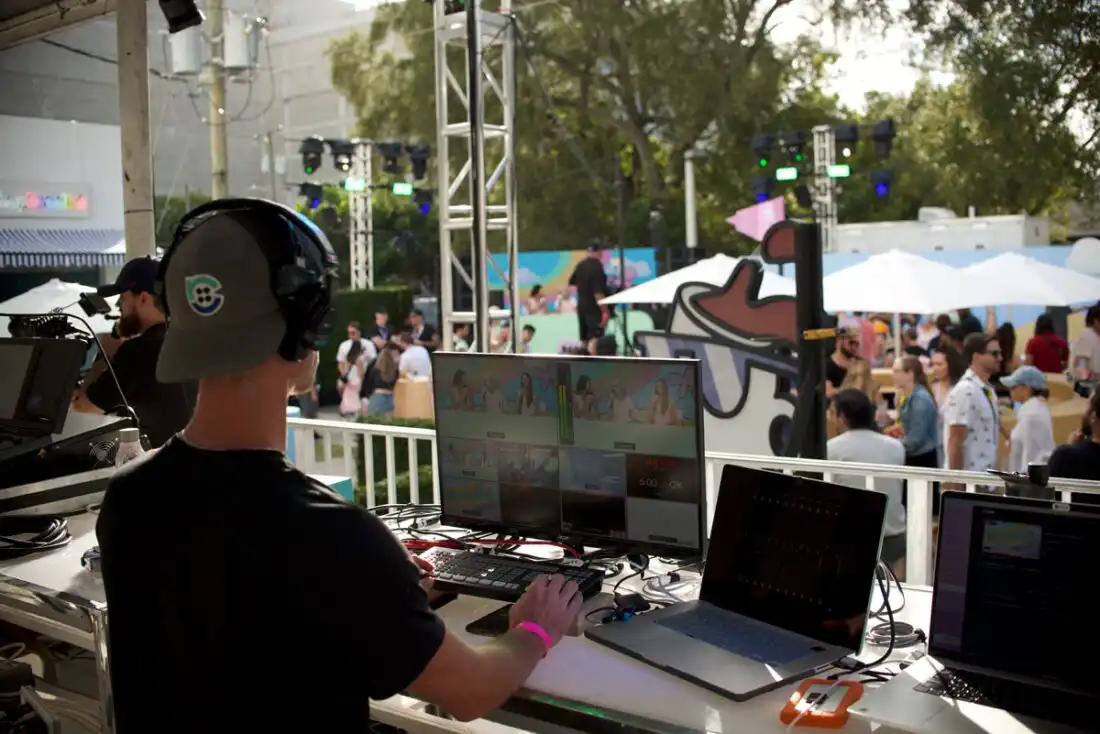
How to plan a reliable live broadcast without a television-network budget
The livestream boom changed the game
Not long ago, producing a live multicamera broadcast seemed reserved for television studios, sports networks, or organizations with generous budgets. Then 2020 happened. Suddenly, churches needed to reach congregations at home, companies moved their presentations online, and events had to find audiences beyond the room. Zoom became a household word, and many people learned the difference between “unmute” and “you’re still muted” the hard way.
The shift was real. In April 2020, Pew Research Center found that 82% of U.S. adults who regularly attended religious services said their congregation streamed or recorded services. Livestreaming wasn’t invented during COVID, but the pandemic accelerated adoption and made online access a normal expectation for many audiences.
Today, a livestream might be a Sunday service, a corporate town hall, a panel discussion, a nonprofit fundraiser, a hybrid conference, or a podcast recorded in front of an audience. And the good news? You don’t need a broadcast truck to do it well.
Why live production is more accessible now
Compact production switchers have brought multicamera workflows within reach for smaller teams. Blackmagic Design’s ATEM Mini family, for example, offers models with multiple HDMI camera inputs and live production features. OSEE’s GoStream line is another example of affordable switching equipment. These aren’t magic boxes, and capabilities vary by model, but they illustrate how much of a traditional control room can now fit on a table.
The real improvement isn’t simply cheaper gear. A small, well-prepared team can produce a polished program with camera switching, presentation playback, graphics, and clean audio—without pretending to be a national network.
First, decide what kind of livestream you actually need
Before renting a single camera, answer a few questions: Who is watching? Where will they watch? YouTube, a private event platform, a church website, or an internal meeting? Is it one speaker or a moving, unpredictable program? Will you need slides, prerecorded videos, lower-third names, remote guests, or a recording afterward?
A simple single-camera stream may be perfect for a lecture. A panel or worship service can benefit from multiple angles. A hybrid conference may need a separate audio mix and a way to show remote participants on screens in the room. The best setup is the one that serves the audience—not the one with the most blinking lights.
The five building blocks of a dependable livestream
- Cameras and coverage. Choose shots that tell the story: a safe wide shot, a tighter speaker shot, and perhaps a third angle for reactions or musicians. Match camera settings and frame rates where practical. A fourth camera is useful only if somebody can operate it or it has a clear purpose.
- Audio. Viewers will tolerate an imperfect camera angle far longer than distorted or missing sound. Whenever possible, use a dedicated feed from the house sound system, and monitor what actually goes to the stream. The room mix and livestream mix aren’t necessarily the same.
- Switching, graphics, and playback. A video switcher selects the camera or presentation source viewers see. Prepare title cards, speaker names, videos, and slides in advance. Test playback audio, too. That inspirational video montage is less inspiring when it’s completely silent.
- Encoding and internet. The encoder converts your program into a stream for the destination platform. For a professional livestream, plan on a reliable wired Ethernet connection—not venue guest Wi-Fi. Confirm access to a dedicated or properly managed network connection well before show day. Test the actual upload speed at the venue, leave generous bandwidth headroom, and run a private test stream under realistic conditions. A wired cable removes one common point of failure, but it cannot fix an overloaded internet service or a venue firewall. For important events, plan a separate backup connection and a local recording. The time to discover the Wi-Fi password is not 30 seconds before going live.
- Direction, crew, and communication. Every livestream needs a producer or director who owns the show: the run of show, timing, cues, priorities, and decisions when something changes. The technical director (TD) operates the video switcher, takes the director’s calls, and puts the right camera, slide, or graphic on air. On a small, straightforward show, an experienced TD may also direct, but that doesn’t mean one person should run cameras, audio, playback, graphics, and streaming at the same time. A dependable team with clearly assigned responsibilities, camera communication, and someone monitoring the audience-facing feed is what keeps a simple livestream from becoming an elaborate technical panic attack.
A practical pre-show checklist
- Confirm platform access, permissions, stream keys, and whether the event is public or private.
- Assign a producer/director, TD, audio responsibilities, playback/graphics cues, and a stream monitor. Combine roles only where the workload allows.
- Get the complete run of show, including speaker names, videos, graphics, and last-minute changes.
- Test every camera, cable, input, microphone, playback source, and recording destination.
- Verify audio sync and levels using headphones, not just meters.
- Secure a reliable wired Ethernet connection, confirm network permissions with the venue, and identify a backup path.
- Test the actual venue internet connection and run a private stream with real movement and sound.
- Plan a fallback for internet failure, power loss, or a camera going down. A local recording is valuable insurance.
- Start early, monitor stream health throughout, and assign someone to check the viewer experience on a separate device.
YouTube’s own encoder guidance recommends testing before going live, checking upload capacity, and monitoring stream health. For a typical 1080p stream, the correct bitrate depends on frame rate, codec, platform, and available upload bandwidth. There is no universal magic number.
Common mistakes (and how to avoid them)
Trying to do everything alone. A producer/director is essential, even on modest shows. One experienced person can sometimes both direct and switch, but the rest of the responsibilities still need reliable owners. Switching cameras, mixing audio, loading graphics, troubleshooting the network, and answering texts at the same time isn’t a production plan. It is a cry for help.
Ignoring lighting. Even excellent cameras struggle when a speaker stands in front of a bright window or under uneven stage lighting. A little attention to exposure and color consistency goes a long way.
Skipping rehearsal. Test the transitions that are most likely to fail: walk-on cues, video playback, remote guests, microphone handoffs, and the final sign-off.
Forgetting the audience. A livestream is its own production. What works for people in the room may not work for a viewer watching on a phone.
A few fun facts from the control room
- Live television has been switching between cameras for generations. Today’s compact switchers borrow the same basic idea: choose the best shot at the right moment.
• “Lower third” is the broadcast term for a graphic often placed in the lower portion of the screen—usually a name or title. It doesn’t have to take up exactly one-third.
• A livestream can look terrific in the control room and still fail online. That’s why monitoring the actual outgoing stream matters as much as monitoring the cameras.
What about Florida and South Florida?
From Miami and Fort Lauderdale to West Palm Beach, South Florida has a wide range of potential livestream needs: churches, small businesses, nonprofit events, community gatherings, corporate presentations, and hybrid conferences. Venues vary just as much—from quiet meeting rooms to echoing sanctuaries and busy event spaces.
The local challenge is rarely just “bring cameras.” It’s coordinating with the venue’s audio team, finding dependable internet, managing lighting that wasn’t designed for video, and making sure everyone knows when the show is live. For outdoor events, weather protection and backup plans deserve extra attention, especially during Florida’s stormier months.
When should you bring in a production team?
If the event matters, involves multiple cameras or speakers, needs graphics and video playback, or cannot afford an interruption, experienced help can save considerable time and headaches. A professional team should ask about your audience, venue, audio, internet, and program before recommending equipment.
At Agape Media Group, we bring hands-on broadcast television experience to approachable livestream production for churches, podcasts, businesses, and events in South Florida. Depending on the project, we can support smaller multicamera productions, including four-camera and eight-camera configurations, with graphics and playback options. Every event is different, so we prefer to understand your needs before putting together a quote.
Whether you hire a crew or build your own system, remember: a great livestream isn’t about showing off equipment. It’s about helping people feel like they were part of the moment, even when they’re miles away.